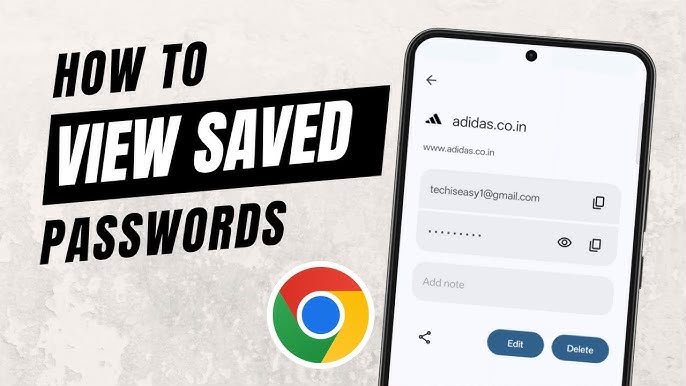

In today’s digital age, we have dozens of online accounts for social media, banking, shopping, streaming, and work. Most people save their log in credentials on their browsers or devices as it can be difficult to remember all the usernames and passwords. Whether you’re using Google Chrome, Microsoft Edge, Mozilla Firefox, Safari or your smartphone, it’s easy to check your saved passwords if you know where to look.
In this guide, we will walk you through how to securely view saved passwords on different devices and browsers. We’ll also go over important security tips to keep your accounts safe.
Why do you save passwords?
Most modern browsers and operating systems have built-in password managers that store your login info securely. When you sign in to a website, your browser may ask if you want to save the password. If you choose “Save,” your credentials will be saved securely and auto-fill the next time you visit that site.
Some benefits of saved passwords are:
Log in faster. Never remember all the passwords.
Stronger passwords because you don’t have to memorize them.
Multi-device synchronization without a hitch.
More convenience for frequently visited sites.
How to Check Saved Passwords in Google Chrome
Google Chrome also has a built-in Password Manager that saves passwords for websites you choose to save.
For Windows or Mac OS
Launch Google Chrome.
Click on the three dots menu at the top right.
Click Settings.
Choose a Password Manager.
You will see a list of saved sites.
Click on the site you want.
Click the eye icon by the password.
If prompted, provide your computer password or fingerprint.
Your password will now be visible.
Open Chrome on Android.
3-dot menu. Tap.
Go to Settings.
Tap Password Manager.
Choose a saved account.
Verify with your fingerprint, PIN or pattern.
ShowSavedPassword
On iPhone Open Chrome.
Select the three dots.
Start password manager.
Choose saved account.
Log in with Face ID or Touch ID.
View saved password.
Microsoft Edge How to View Saved Passwords
Microsoft Edge also has a secure password manager.
Launch Microsoft Edge.
Select the three dot menu.
Select Settings.
Choose Profiles.
Select Passwords.
See saved passwords.
Click the eye icon next to any saved password.
Authenticate your identity using your Windows password or biometric authentication.
Then your password will be shown.
How to See Saved Passwords in Mozilla Firefox
Firefox has a straightforward way of managing saved logins.
Open Firefox .
Click the menu icon .
Choose Passwords.
View your bookmarked sites.
Select any account.
Choose Show Password.
Authenticate if needed.
Firefox also allows you to edit or delete saved passwords at any time.
How to Find Saved Passwords in Safari
If you’re on a Mac, Safari saves passwords using Apple’s Passwords feature.
Open System Settings.
Choose Passwords.
Sign in with Touch ID or your Mac password.
Saved accounts. Browse
Click on any site
See the saved username and password.
On an iPhone or iPad:
Go to Settings.
Tap Passwords
Verify with Face ID/Touch ID
Select a saved site.
View your saved password
How to See Saved Passwords in Windows
Wi-Fi and application credentials are also stored by Windows.
For browser passwords, simply open the password manager in the browser.
For Wi-Fi passwords: >
1) Open Control Panel.
Click Network and Sharing Center.
Tap on your wifi network.
Choose Wireless Properties.
Open the Security tab
Check show characters
Your saved Wi-Fi network’s password appears.
How to See Saved Passwords on Android
Google’s Password Manager is used by many Android phones.
Go to Settings.
Google.
Choose Password Manager.
See your saved accounts.
Choose the account you want.
Confirm your identity.
See saved password.
The location of Password Manager may differ a little for some phone manufacturers but the process is generally same.
How to Find Saved Passwords on an iPhone
Apple’s iCloud Keychain keeps your passwords secure.
Open Settings
Tap Passwords
Sign in with Face ID or Touch ID.
Select saved account.
Click on Password.
If iCloud Keychain is turned on, your passwords are automatically synced across your Apple devices.
Viewing Saved Passwords: Is It Safe?
Yes, it is generally safe to view saved passwords if you are on your own trusted device. Most modern operating systems require authentication before showing passwords to help prevent unauthorized access.
But don’t look at passwords on a public or shared computer. If someone gets physical access to your unlocked device, they might also be able to access your saved credentials.
Tips for Keeping Passwords Secure
Saving passwords is convenient, but good security practices are just as important.
Here are some tips:
Log in to each site with a different password.
Enable two factor authentication (2FA) wherever it is available.
Never give your passwords to anyone.
Keep your browser up to date.
Use biometric authentication wherever possible.
Check and delete old and unused saved passwords periodically.
Keep your device protected with a strong PIN, password or fingerprint.
Do not store passwords on public or shared computers.
A dedicated password manager can help you generate strong, unique passwords, and store them safely in one place.
What if you lose a password?
If your password is not saved, you might need to reset it. Most websites have a Forgot Password link on the login page. Follow the instructions to get a password reset email or verification code.
Once you’ve reset your password, you might want to save the new password in your browser or password manager to make it easier to use in the future.
Conclusion
It’s easy to see saved passwords on modern browsers and devices. Built-in password managers in Google Chrome, Microsoft Edge, Mozilla Firefox, Safari, Android, and iPhone make it easy to locate your saved credentials after verifying your identity.
Although saved passwords are more convenient, your device should be protected by strong security. Use strong passwords, enable two-factor authentication, and keep your software up-to-date to reduce the chances of unauthorized access . With these best practices, you can get the convenience of saved passwords while keeping your online accounts safe.